Before following a troubleshooting step, identify the robot, the dock, and the exact alert. A code number by itself is rarely enough: manufacturers reuse numbers, and one product can use the same number for different operating conditions.
Record the complete alert
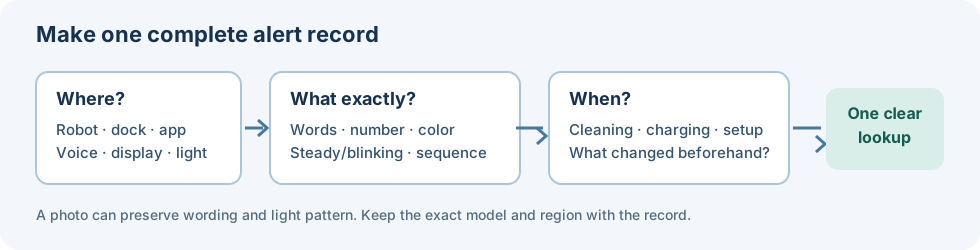
Write down or photograph:
- The exact words and number shown in the app or spoken by the robot.
- Every illuminated indicator and its color, whether it is steady or blinking, and the order of any pattern.
- Whether the message came from the robot, dock, or app.
- What the robot was doing when it appeared: charging, returning to the dock, evacuating debris, connecting to Wi-Fi, or cleaning.
- Whether the alert began after a move, cleaning, part replacement, app update, firmware update, or network change.
A red light can mean only that an error is present; it may not identify the error. On iRobot products, the app or voice message can give the specific alert. Other products use combinations of lights, so record the whole pattern rather than only one color or number. For example, breathing red on the Narwal Freo Z Ultra can mean a robot or base error or a disconnection between them. The Kärcher RCV 5 manual describes fast red flashing with a signal only as an error situation, while the MOVA P10 Pro Ultra manual says blinking orange means error without naming its cause. In each case, use the exact model’s app or troubleshooting guide to identify the next step.
Confirm the exact robot and dock
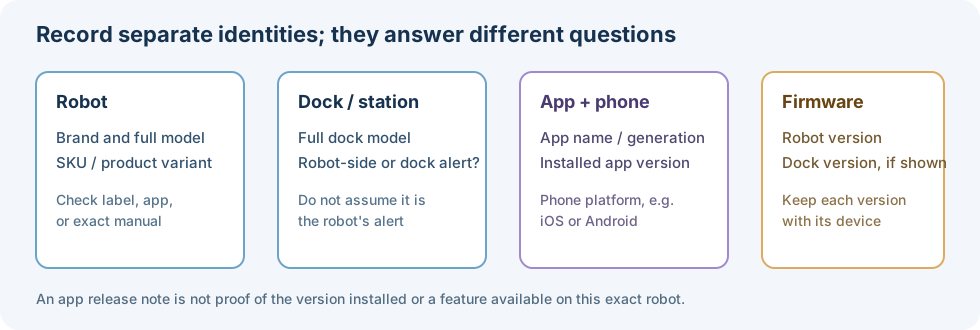
Check the product label, the app’s device details, and the manual. Record the complete model name or SKU, the dock or station model, and the country where the product was sold. Model families often have regional versions and different docks.
For iRobot, the iRobot HOME App and Roomba Home App provide a serial-number path in Product Settings. A serial number can help support identify a robot, but it is not a model or battery part number by itself. Label locations vary; follow the exact model’s instructions rather than removing a battery or cover to search for a label.
Match the alert to the manufacturer source
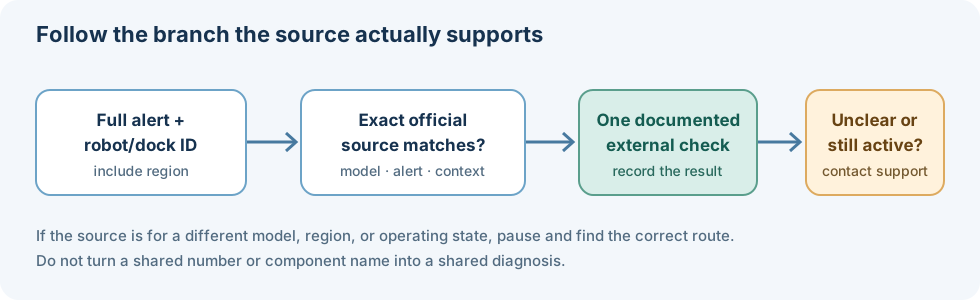
Open the support page or manual for the exact brand and model. Check the full alert wording, not just the number. For example, iRobot Error 11 while the robot is operating can mean the vacuum in the bin is not functioning properly on named 800 and 900 Series models. The separate iRobot charging chart uses “Charging Error 11” for a battery hardware fault. Those are different alerts.
A light or dock indicator also needs model context. Some Roomba 200/2000 docks have no indicator light, while a Combo 10 Max dock light can turn off after about a minute. A dark light alone does not establish a dock failure.
For Roomba 100/1000, 200/2000, Plus 400/500/600, and Max 700/800 models, use the newer-series error chooser to select the chart branch before following a focused recovery guide.
Check app and software context
Record the app name and generation, its installed version, and whether the phone is running iOS or Android. Where settings show them, record robot firmware and dock firmware separately. For iRobot, write whether the phone uses iRobot HOME or Roomba Home App; the manufacturer lists them as separate apps. Its Roomba Home App release notes document dated releases and platform or regional details, but do not establish which version is installed or whether a particular robot is eligible for a feature. Do not update the phone, migrate apps, or reset the robot just to test an alert unless current instructions for the exact model call for that step.
Choose one documented first check
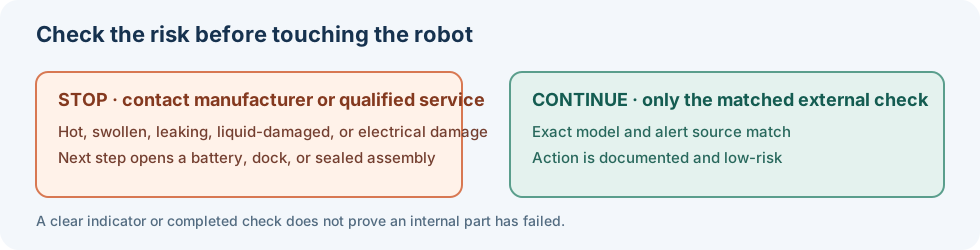
Follow the shortest low-risk step in the exact model’s manual or support page. Change one thing at a time and note whether the alert clears. Do not transfer a charging, reset, sensor, or wheel procedure from another manufacturer or model.
Stop and contact the manufacturer or qualified service if the robot or battery is unusually hot, swollen, leaking, or damaged; if liquid reached electrical parts; if a power cord or contact is damaged; or if the next suggested step requires opening a battery, dock, or sealed assembly. Do not bypass a wheel, cliff, charging, or other safety alert.
Prepare useful information for support
Have the robot and dock model, serial number if available, exact alert text or a photo, the country, app and software versions, and the steps and results so far. Keep purchase documentation available for a warranty question. These details help support distinguish a robot issue from a dock, battery, app, or network issue.
Model-specific lookups
- Roomba charging errors
- Roomba Error 520 dock communication
- Roomba Error 66 map memory
- Roomba Error 11 while operating
- Roomba Error 1010 and dock navigation
- Roomba Combo Error 1008 pad-actuator alert
- Newer Roomba error messages: choose the correct series and dock
- Narwal Freo Errors 1009 / 1010 mop-pad model groups
- Roborock Error 10 and filter care
- Wheel, brush, sensor, and bumper alerts
- Dreame X50 Ultra LDS lift alert
- Samsung Bespoke Jet Bot Combo voice alerts
- BISSELL SpinWave alerts for models 2859 and 3377
- ECOVACS DEEBOT T80 OMNI alerts
- Miele Scout RX3 error messages
- Dyson 360 Eye indicator alerts
- Tapo LiDAR robot vacuum prompts
- ILIFE V3s Pro beep codes
- eufy S1 Pro, L70 Hybrid, and X9 Pro voice alerts
- Eureka model-specific alert checks
- MEDION 11889 DS white-flash alerts
- Proscenic 850T light and beep alerts
- Lefant M213S alarm tones
- Coredy R750 light and beep alerts
Sources & product documentation 11 references
- Charging Error Chart: All Roomba and Braava ModelsPrimary
- What Do the Lights on the Light Ring Mean?Primary
- Error 1010, Roomba 100/1000, 200/2000, Plus 400, Plus 500, Plus 600, Max 700, and Max 800 SeriesPrimary
- Where Do I Find the Serial Number?Primary
- Roomba Max 700 Software Release NotesPrimary
- Roomba 100 / 1000 Series Software Release NotesPrimary
- Voice Alerts & Quick Solutions for Dynamic Navigation Series (G series)Primary
- Product Help — Freo Z UltraPrimary
- RCV 5 Operating InstructionsPrimary
- MOVA P10 Pro Ultra Robot Vacuum and Mop User ManualPrimary
- Roomba Home App Software Release NotesPrimary