Find the exact robot model before you follow a model-specific troubleshooting step or order a part. Then identify the dock or base station separately. A series name such as “Q Revo,” “Roomba Combo,” or “Omni” can cover more than one robot, station, regional version, or accessory group.
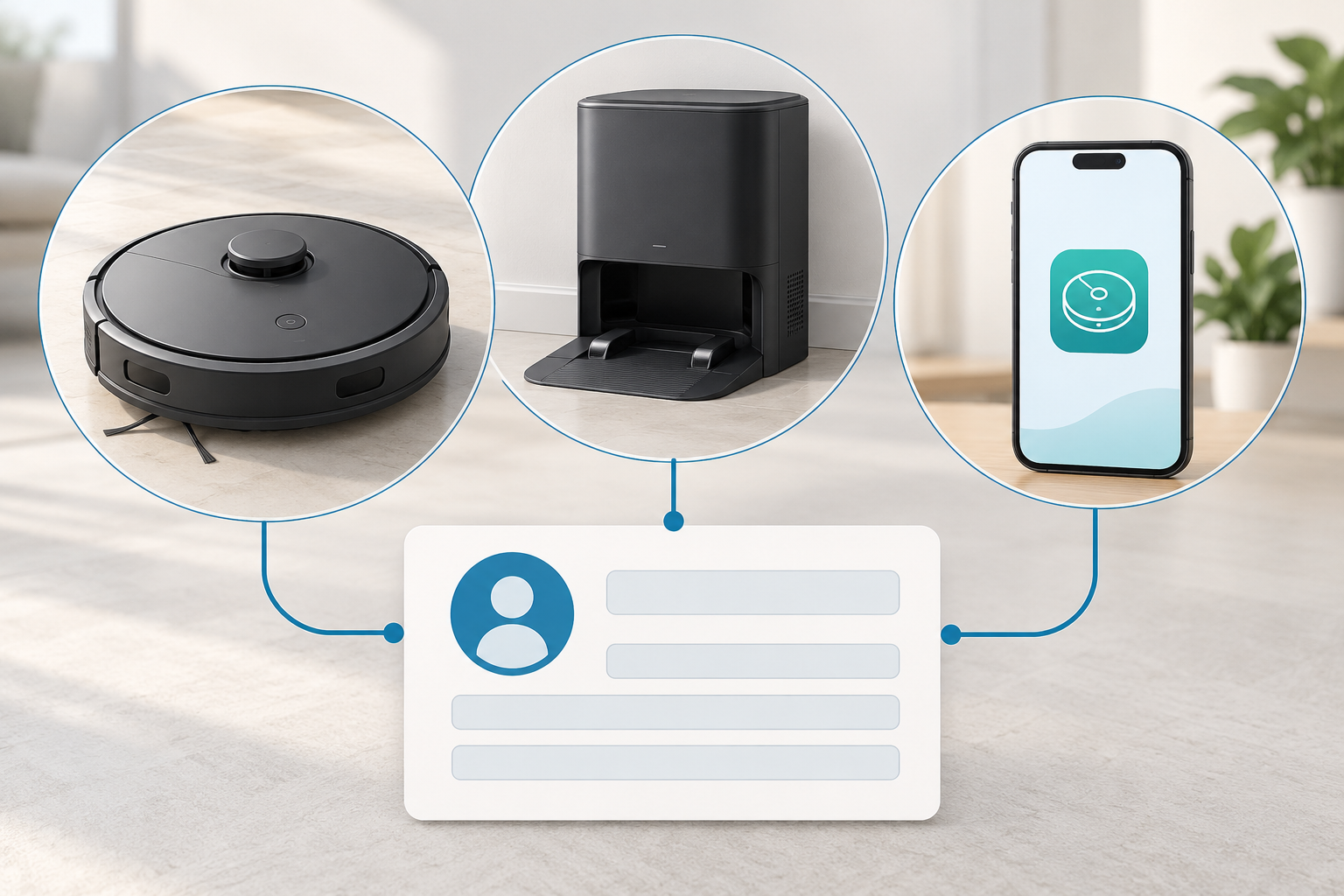
Illustration: keep the robot, station, and app as separate clues when building an identity record.
Record the details that distinguish your unit
Start with the information printed on the robot or shown in its official app. Copy the complete text, including letters, numbers, punctuation, and suffixes. Do not convert a retailer’s shortened product name into a model number.
| Field | What to record | Why it matters |
|---|---|---|
| Brand and family | The name used on the robot and in the official support page | A family name helps you reach the right support area but may cover several versions. |
| Robot model or product number | The complete model or product number from the robot label | This is the best starting point for the exact manual and support page. |
| Storefront SKU or bundle | The exact seller or manufacturer listing identifier, if shown | A listing identifier can distinguish a market or package but is not a physical robot or dock code. |
| Robot type | The manufacturer’s label for a vacuum, vacuum-and-mop, or Combo configuration | Names like “Combo” can point to different procedures and station setups. |
| Station model | The separate dock, base, or station identifier, if one is printed | The station can have its own model, power, water, emptying, washing, and charging details. |
| Region | Where the unit was sold and the country or market shown on its manual | Similar names may have different regional codes or electrical configurations. |
| App and manual | The exact app device name and version, plus the manual title or model code | App recognition can help, but a family-level app entry does not establish fitment. |
| Revision clue | Purchase date, package label, or a stated generation/suffix | Some official listings distinguish models by suffix, bundle, or purchase date. |
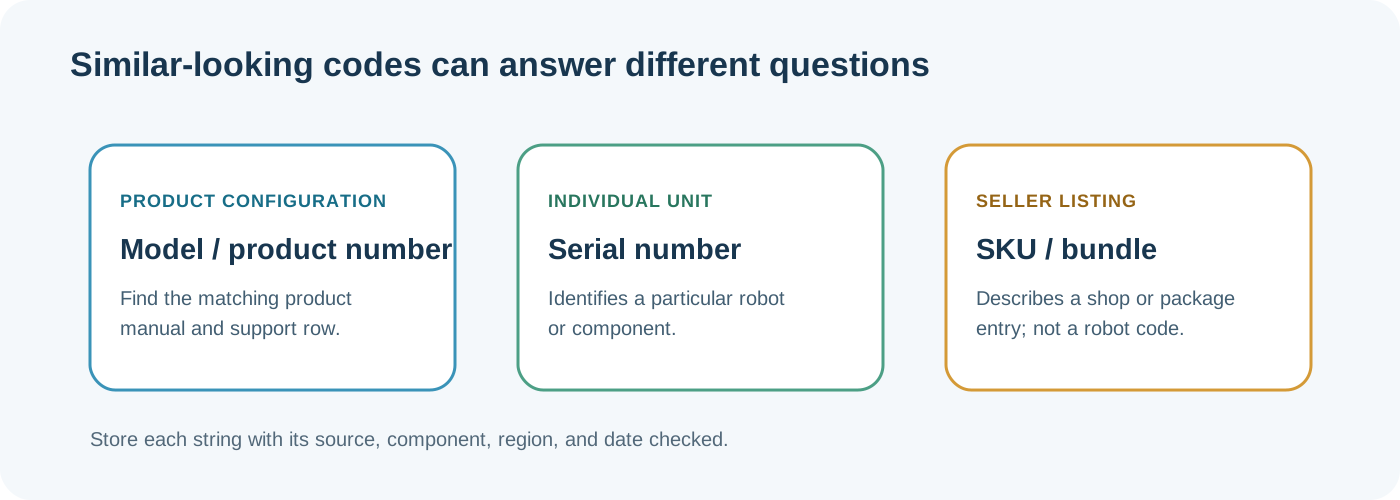
The model, serial, and storefront SKU can all be useful, but they identify different things.
Look in safe, model-specific places
Check the underside or other external rating label first. If the dock has a label, record that separately. Keep the packaging, receipt, and manual if available; they can help distinguish a regional SKU or bundle.
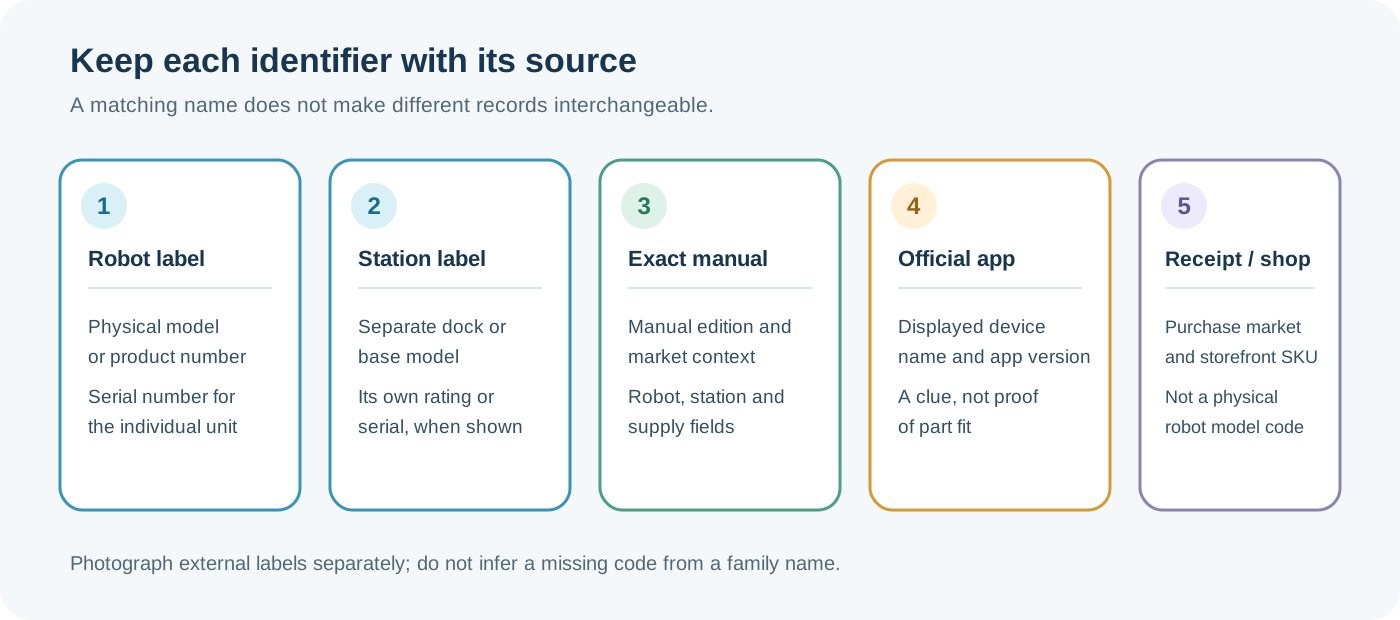
Use each source for the kind of identifier it actually provides; a listing or app name does not replace a physical model code.
The official app can provide a useful second check. iRobot support describes finding a connected robot’s serial number in the app, while physical label locations vary by model. For one UK Roomba example, the model label is near the left wheel on the underside and the serial number is beneath the bin after bin removal. Treat that as a model-specific example, not a location map for every Roomba. See iRobot’s serial-number guide and the UK parts and accessories catalog.
For eufy RoboVac models, the product number (PN) is generally on a paper label on the robot body. The serial number (SN) is commonly on the robot underside or back of the base station. The app’s Device ID is available only on supported Wi-Fi models. eufy says RoboVac 11S does not support app connection and has no Device ID. If your unit is an 11S, the missing app entry is expected; use the physical label for its identity. eufy documents a model-specific S1 Pro location under its dustbin; do not open a cover or remove a component unless the exact manual describes that step. Check eufy’s current SN and PN guidance.
ECOVACS app setup can begin by scanning the QR code on a supported DEEBOT. Samsung’s SmartThings setup offers QR scanning from the robot or packaging, or selecting a model without a QR code. Roborock lists selected families for QR-based setup and gives a no-QR search path for other models. These app flows help identify or connect a device; they do not verify parts or station compatibility. Use the current regional instructions: ECOVACS, Samsung, and Roborock’s QR setup guide.
Avoid opening sealed panels, handling a battery, or dismantling the dock just to find a number. If an ordinary removable bin or cover is involved, use that access only when the instructions for the exact model say it is intended for the owner.
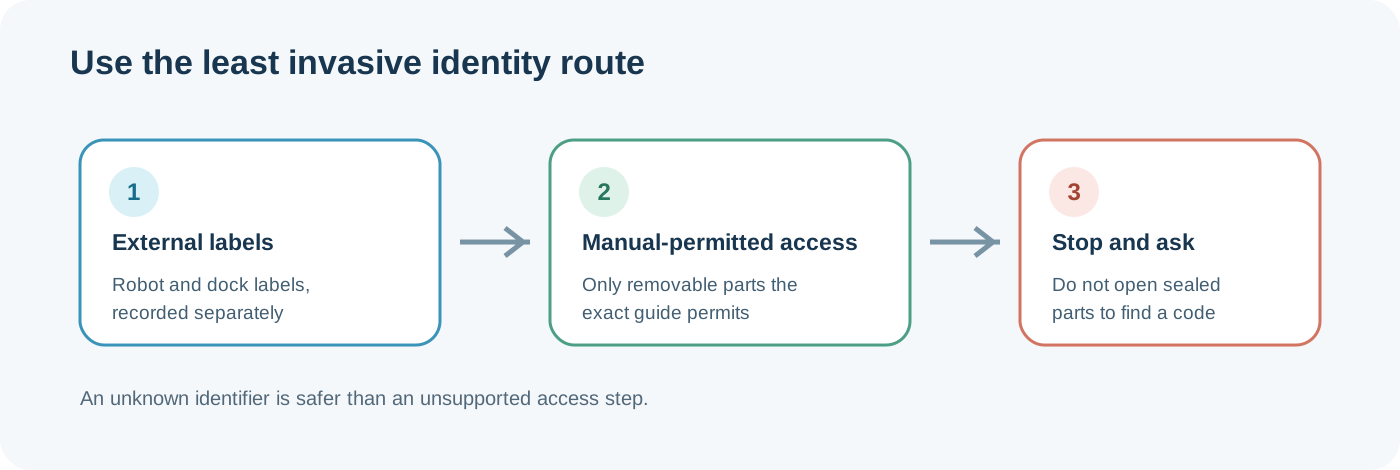
Use the least invasive route; an unknown identifier is safer than an unsupported access step.
Record app and phone context only when relevant
If app recognition or setup is part of the identity question, record the exact app generation or name and installed version, the phone’s operating-system name and version, the device class (phone, tablet, or foldable), and the country where the robot was sold. Record firmware only when it is visible in an ordinary app screen. These details help support match the correct app instructions; they do not replace the robot and station labels.
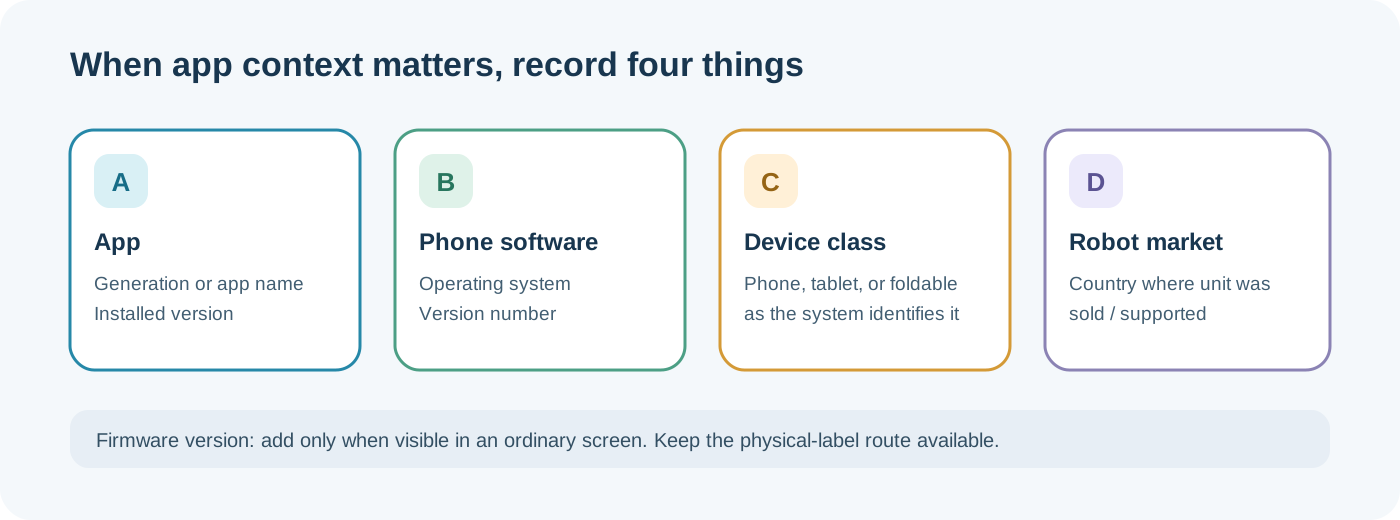
Collect these software details only when the app is part of the question; firmware is optional when normally visible.
For Roomba, the newer Roomba Home App and classic iRobot HOME App have separate setup pages, phone minimums, and model references. Those pages also contain distinct family and Wi-Fi network tables. Keep the table that answers app selection separate from a table that answers network-band support. If the robot is not listed or app wording conflicts, use the physical labels and ask iRobot which instructions apply. See the Roomba model and app guide. A missing app match by itself does not identify a hardware fault.
A model code may identify more than one system component
Record the robot, dock, and supply as separate fields even when the codes look related. Roborock’s Q10 Series manual separately identifies robot RRA0TAL, docking station SPCDZ04RR, auto-empty dock AED09LRR, and power supply BLJ24WJ200120P-U. These identifiers belong to that manual’s US/Canada configuration; they are not a cross-model fitment list. Check the Q10 manual.
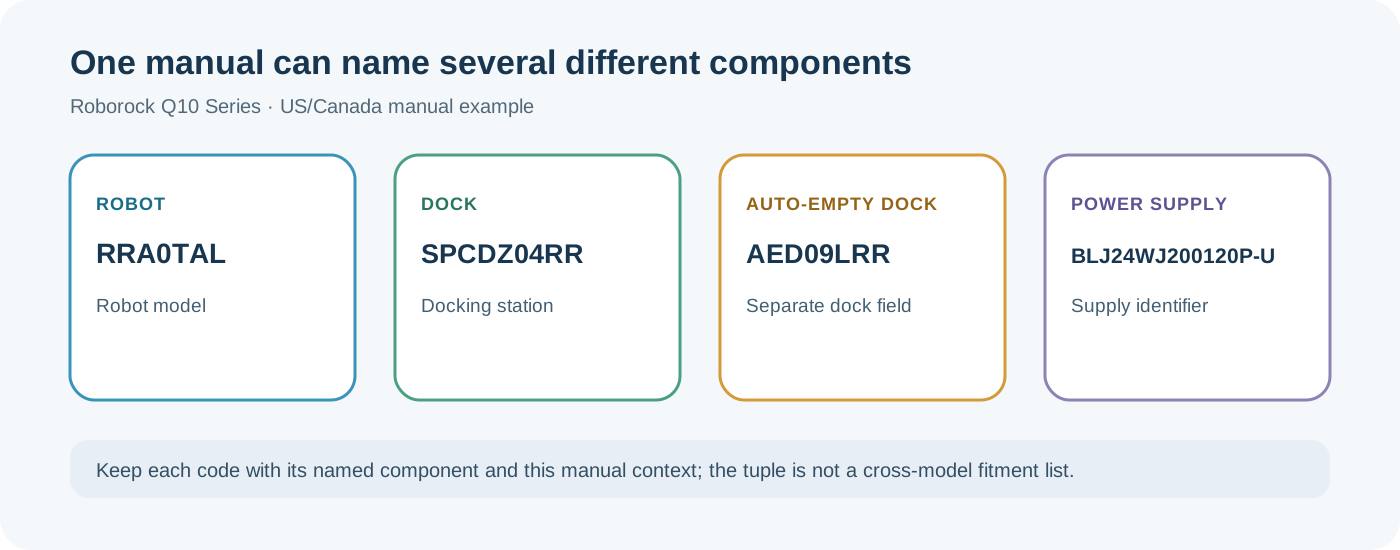
One manual context; the tuple is not a cross-model compatibility list.
A Narwal manual separately labels both the robot and multifunction charging station YJC033. It lists two station input ranges, 100–127 V and 220–240 V, without mapping either range to a country or retail bundle. The repeated code does not remove the need to check the physical station label and local manual. See the Narwal manual.
Xiaomi’s UK H40 specifications page names robot model OV51 and dock model OV51JCZ. It displays separate EU/UK and US input-rating values (220–240 V and 100–130 V) without mapping them to distinct physical dock variants. Do not infer that one dock supports both ranges from this page alone. Check the label on your actual dock and the manual for its market before relying on an electrical specification. See Xiaomi’s H40 specifications.
Verify the robot and dock as a pair
- Match the full robot identifier to an official support page or manual for the same market.
- Check the manual’s product label or specification page for a separate dock or base-station model.
- Compare the physical labels with the app and package. Save a clear photo if the text is difficult to copy.
- Confirm that a support or accessory page names your exact model, suffix, region, and component.
- If sources disagree or identify only a family, ask the manufacturer which manual applies. Keep the result marked unknown until they confirm it.
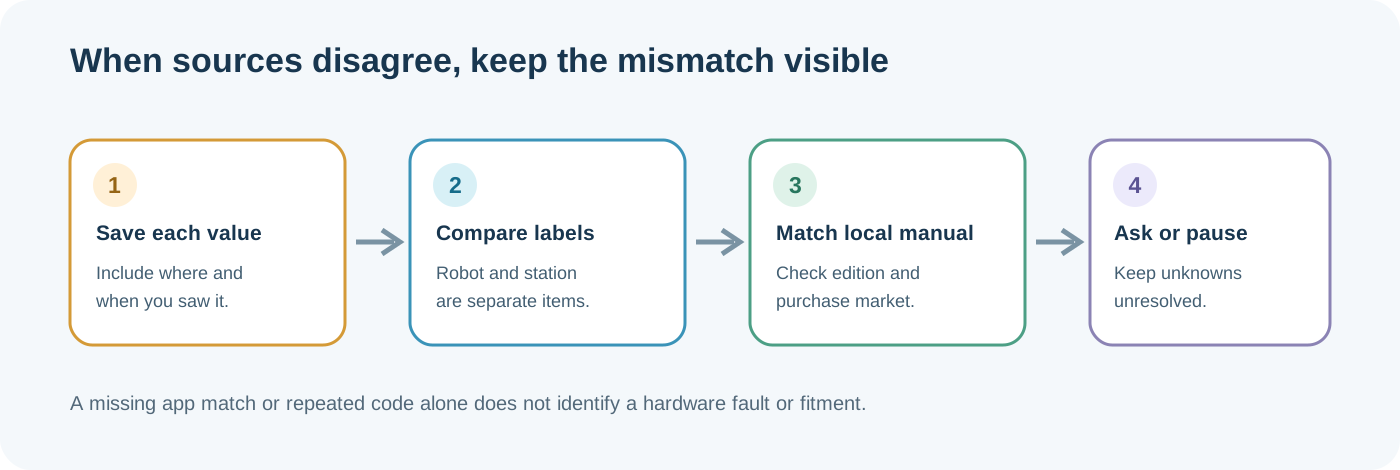
Keep a conflict unresolved until the manufacturer or exact local documentation identifies the configuration.
A “Plus,” “Pro,” “Ultra,” “Combo,” or station name can describe a different bundle or system. It is a clue to investigate, not proof that a dock, battery, brush, filter, mop, or water component fits. For example, eufy’s replacement kit groups selected RoboVac models and has a model/date qualification; its list is not a universal kit for the whole brand. Read the exact listing before using it. Narwal likewise presents accessories by named Freo or Flow families, which still requires checking the exact item and model in the current local listing: Narwal product support.
Some official support pages are service-program lists rather than product catalogs. eufy’s self-service repair eligibility page changes by country and does not establish general product availability or parts compatibility. See the eufy repair-eligibility guide for the current US, Canada, and UK model lists, then verify the live program page for your model and issue.
Narwal’s US Product Support Policy lists model numbers alongside published end-of-security-updates dates. Match the full model number and check the current policy and app for your unit; the policy is US-scoped and the date is not a parts-fitment or device-safety judgment. See the Narwal model and support-policy guide.
Copy-ready identity card
Brand and family:
Robot model / product number:
Storefront SKU or bundle (if shown):
Robot type (as named by the manufacturer):
Robot serial number (share only with official support when needed):
Dock or base-station model:
Country or market of purchase:
App generation/name and installed version (if relevant):
Phone OS/version and device class (if relevant):
App device name:
Firmware version (only if normally visible):
Manual title and model code:
Purchase date or revision clue:
Official support page checked:
Still unknown or conflicting:
The serial number can identify an individual unit. Share it only through the manufacturer’s official support channel when needed; it is not a substitute for checking the model and station.
When the model cannot be confirmed
Do not guess from color, dimensions, a product photo, or an online marketplace title. Send the manufacturer the model-label photo, station-label photo, purchase market, and manual title. Do not order a part or apply a model-specific procedure until the manufacturer’s documentation resolves the exact configuration.
Continue with a Roborock Q Revo family guide, the Roomba model guide, the selected Xiaomi model and dock guide, the Miele Scout RX3 identifier guide, or the cross-brand model guide once the brand and family are known. For the Dyson dock-and-cable listings or the eufy regional C30 names, see the Dyson 360 Vis Nav guide and the eufy C30/C30 Edge guide.
Sources & product documentation 18 references
- iRobot: Where Do I Find the Serial Number?Primary
- iRobot: All Roomba Features and Compatible PartsPrimary
- iRobot UK: Roomba AccessoriesPrimary
- iRobot UK: Parts and AccessoriesPrimary
- iRobot Canada: Roomba Home App Software Release NotesPrimary
- iRobot: Setting Up Your Robot with the Roomba Home AppPrimary
- iRobot: Setting up your Wi-Fi Connected Robot with the iRobot HOME AppPrimary
- eufy: How to Find Your Product’s Serial Number and Product NumberPrimary
- ECOVACS: Robot Network Connection GuidePrimary
- Roborock: Where to Find the QR Code During Wi-Fi SetupPrimary
- Roborock Q10 Series User ManualPrimary
- Samsung: Add Your Jet Bot to SmartThingsPrimary
- eufy US: Replacement Kit for Selected RoboVac ModelsPrimary
- Narwal: Freo Product SupportPrimary
- Narwal Robot Vacuum and Mop User ManualPrimary
- eufy Repair Application InstructionsPrimary
- Narwal: Product Support PolicyPrimary
- Xiaomi UK: Xiaomi Robot Vacuum H40 SpecsPrimary