“Roomba i7,” “Roomba Combo,” or “AutoEmpty” may be enough to start a support search, but not enough to identify every battery, bin, brush, dock, or regional package. Use the series name to reach the right iRobot page, then match the exact model and part row before you act.
Conceptual illustration: the physical label and app generation are separate clues; it does not depict an iRobot product or app screen.
Treat a series name as a starting point
iRobot support groups products across legacy 500–900 families, e, i, j, and s series, and newer robot and Combo lines. Its current feature and serial-number pages also list families such as Mini, 100/1000, 200/2000, Plus 400/500, and Max 700. Those names help narrow a search; the manufacturer’s exact model row still controls.
The support pages change as products and apps change. The features and compatible parts table, battery chart, and serial-number guide should be checked together when identifying a current or older robot.
Two newer guide entries illustrate why the complete family name matters. iRobot’s owner-guide index labels Roomba 770–779 as “Max Combo Robot + AutoWash Dock” and offers guide-language links including English (US), English (UK), and French (Canada). A separate US English guide is titled for Roomba Max 875–877 Combo Robot + AutoWash Dock. These are support-guide labels, not a retail SKU crosswalk or proof of availability in each linked language market. Use the 770–779 owner-guide index and the 875–877 guide for the exact family documented; neither title establishes dock interchangeability with another Roomba.
A family label does not settle a part or dock question
The iRobot battery chart illustrates why a series name or capacity alone is not enough. It lists 3000 mAh LFP batteries for both the 100/1000 and 200/2000 families, while warning that their shapes differ and the batteries are not interchangeable. Check the complete model and the exact battery listing, not only capacity.
The features page also groups some families by navigation hardware: it lists LiDAR-only systems for Mini, 105, 115, 205, 405, 415, and 515, and LiDAR plus camera for 505, 575, and Max 700 Vac/Combo. ClearView LiDAR Map support is grouped separately. These are manufacturer-listed features that can narrow a model search, not a unique identifier or a parts/dock crosswalk.
Dock bundles also vary by named product. iRobot’s packout page gives examples such as 100/1000 robots bundled with Charge Only or AutoEmpty docks, 200/2000 models with a charging dock, and Plus 400/415 models with AutoWash docks. A bundle tells you what may have shipped with a product; it is not a universal replacement-dock compatibility list. Verify the dock model and current instructions for your unit.
“Plus,” “Combo,” “AutoEmpty,” and “AutoWash” can describe a different product or station setup. Treat the term as a reason to check the manual, not as proof that parts transfer between units. The features page groups brushes, bins, batteries, and network features by named families, while the battery and dock pages show that individual components can have narrower applicability.
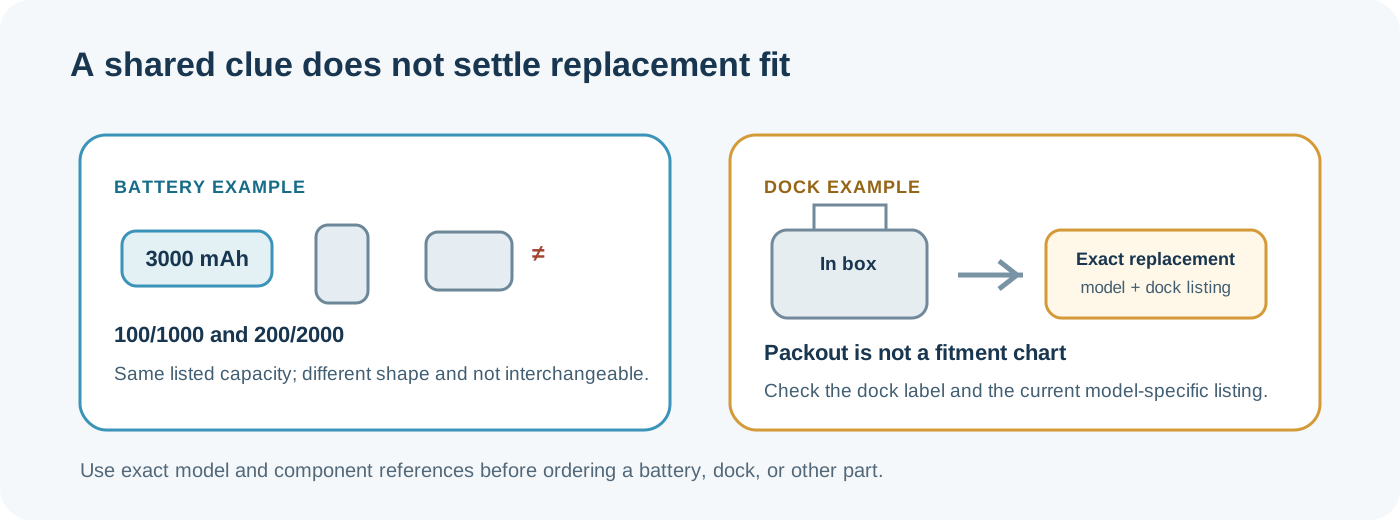
Capacity and packout are clues; compare the exact battery or dock listing for the model.
Find the model and serial number
When the robot connects, iRobot’s app may expose the serial number under Product Settings. Physical label positions vary by model. In one UK example, the model number is printed near the left wheel on the underside; the serial number is shown beneath the bin after removing it. Do not apply that location to every Roomba. Follow the exact instructions for your model in the iRobot serial-number guide and UK model-label example.
The iRobot US Accessories & Parts selector pairs some family names with selector item strings—for example, “Roomba Max 875 Combo Series” with Z185020, “Roomba Plus 678 Combo Series” with V185020, and “Roomba 200 Series” with L124020. These strings identify entries in that US selector; they are not physical model or serial numbers, regulatory codes, or proof of parts compatibility. Use the robot’s exact label and model-specific support row for those questions.
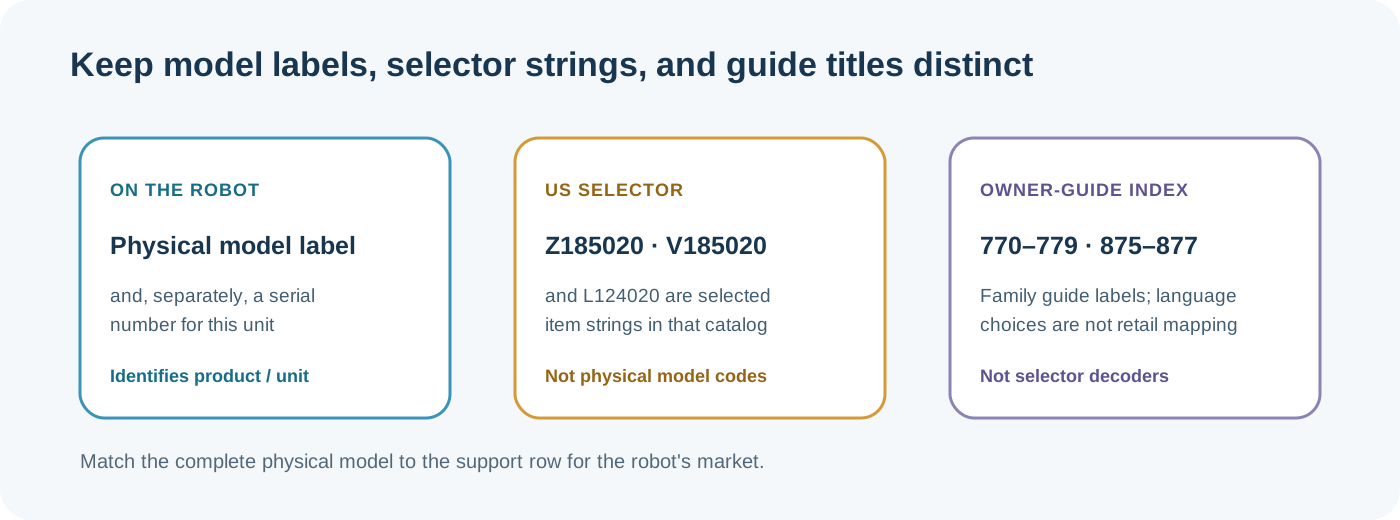
These records answer different lookup questions and do not decode one another.
Match the app generation and phone to the exact model
iRobot’s English-language setup pages describe two app generations. The newer setup page names the Roomba Home App for the families in its list and states minimum phone operating systems. The classic setup page directs several newer families to the Roomba Home App and describes the older iRobot HOME App for legacy Wi-Fi-connected robots. The pages do not provide one complete cross-market map of every retail model to an app, so use the exact model, purchase market, and current support page together.
| Setup reference | What its model section says | Phone operating-system minimum stated |
|---|---|---|
| New Roomba Home App | Names Roomba Mini; 100/1000; 200/2000; Plus 400, 410, 500, 510, 570, and 600; and Max 700 and 800 series for setup with this app. | iOS 17 or later; Android 11 or later. |
| Classic iRobot HOME App | Says legacy products use the classic app and directs Mini, 100/1000, 200/2000, Plus 400/500, and Max 700 families to the newer app. It does not give a complete current list of every family that remains on the classic app. | iOS 15 or later; Android 9.0 or later. |
These are separate source statements, not an exhaustive list assembled by combining app-family rows. The setup pages are English-language support references; they do not establish a US, UK, or Canadian retail or app-availability crosswalk. Confirm the app for the market where your robot was sold if its family is absent or the pages do not align.
The iRobot Canada release notes list New Roomba Home App version 3.0.0 with a release date of July 21, 2026. The note says its initial Android availability was limited to certain regions and would expand as iRobot monitored performance and stability. This dates a rollout statement; it does not tell you which version is installed on your phone or whether the rollout applies to your market today. Check the current release notes and the app store on the device.
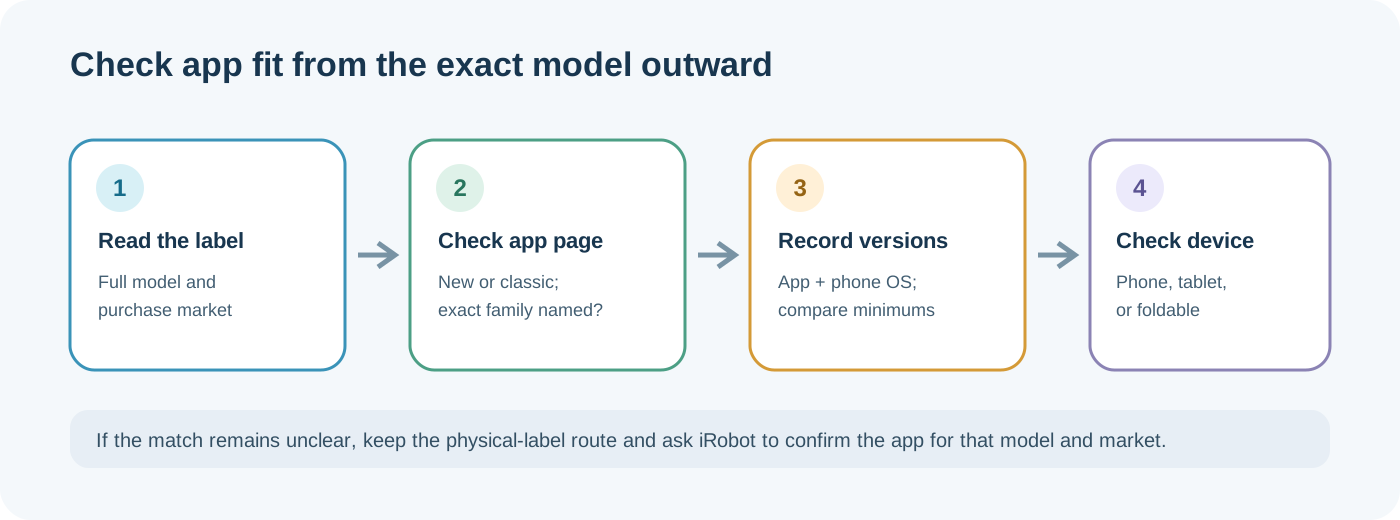
Use the exact model and market to choose the support page before judging whether an app should recognize the robot.
Keep app selection separate from Wi-Fi band tables
A setup page can contain more than one kind of model table. The Roomba Home App page has a family list for app setup and a separate Wi-Fi table showing whether named models support 2.4 GHz and 5 GHz. Its network rows include narrower names such as Plus 615/675 and Plus 875. That network table answers a network-band question; do not treat it as a second app-family list or merge it with the page’s app-selection paragraph.
The classic setup page has its own Wi-Fi table for classic-app setup models. It is another source set for network bands, not a complete map of which current model must use which app. Check the relevant current table only when network capability is the question. This guide does not reproduce setup or network troubleshooting steps.
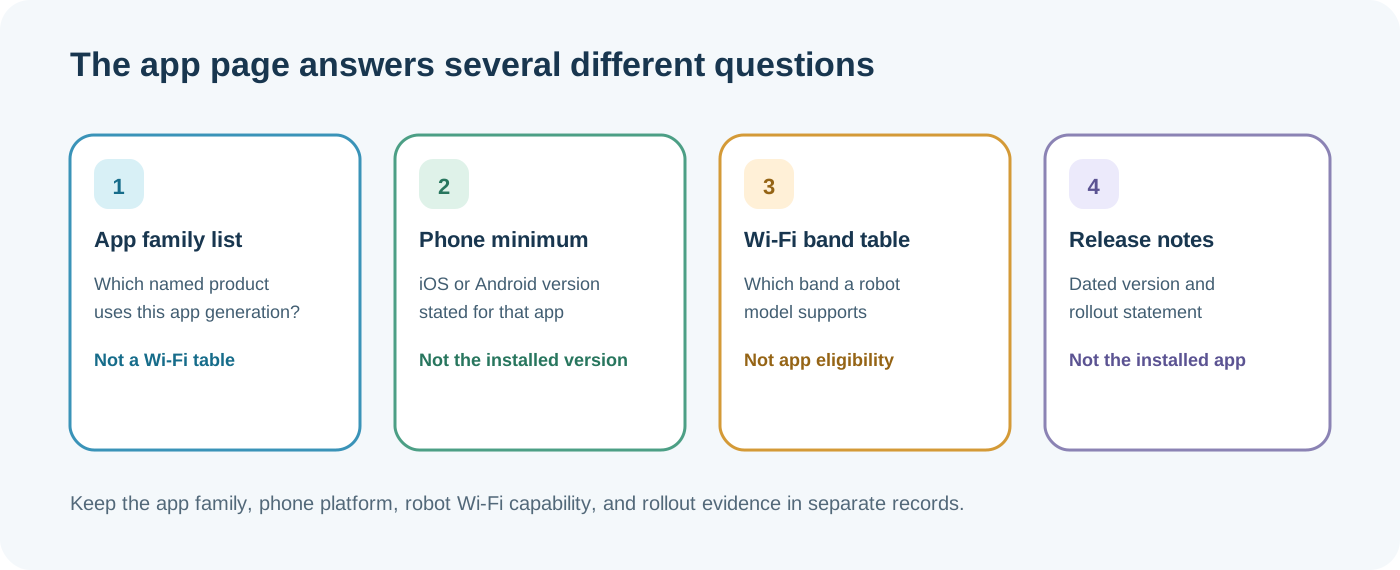
Keep model app eligibility, phone requirements, robot network capability, and installed-version evidence in separate records.
Check the device-class wording before treating a missing app entry as a model problem
Both setup pages say iPad and tablet devices are unsupported for setup and note that foldable phones are often classified as tablets. Their later troubleshooting sections suggest trying another phone or tablet, then repeat that iPads are unsupported. The wording does not establish a tablet or foldable workaround.
Use a supported phone when checking the model’s app route. If the app page, device class, or market remains unclear, ask iRobot which setup instructions apply to that exact model. Keep the external label and manual as the physical identity route; a missing app match alone does not establish a robot fault.
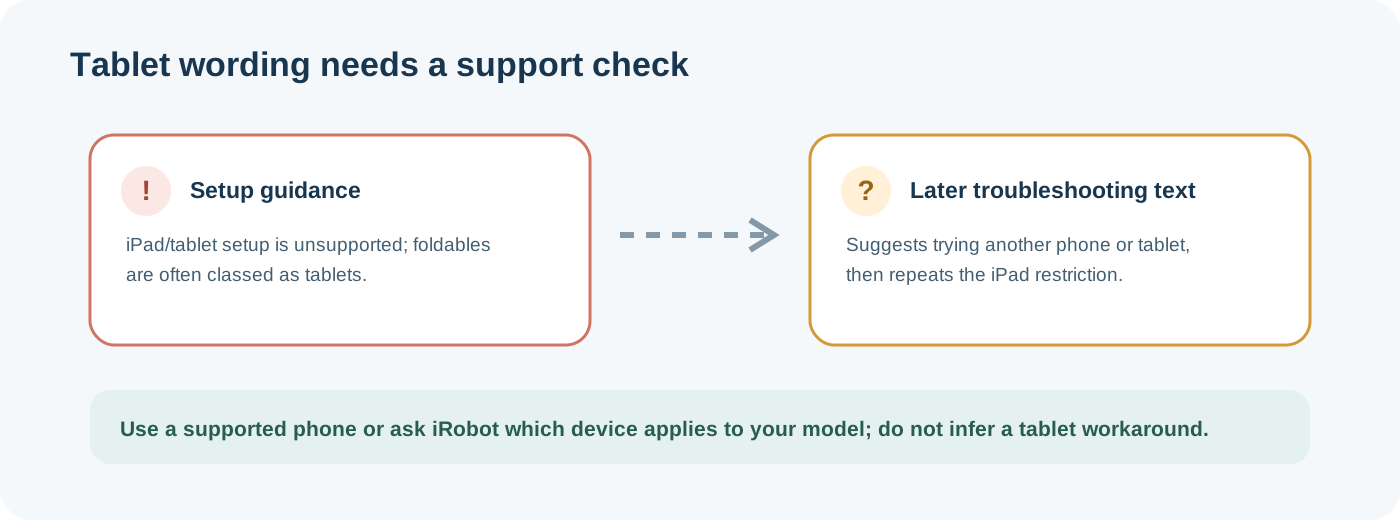
The conflicting tablet wording needs manufacturer clarification; this diagram does not suggest a tablet workaround.
Verify before ordering or troubleshooting
- Record the full model or product number from the robot and any package label.
- Record the dock separately, including whether it empties, washes, or only charges.
- Match both identifiers to the support page for the country where the robot was sold.
- Check the exact battery, filter, bin, or brush row rather than a family-level match.
- If an older or refurbished unit has conflicting names, share the label and serial with official support before selecting a part.
The iRobot UK accessories catalog and US Accessories & Parts selector are separate regional references. Do not use a UK filter or family grouping as proof of US or Canadian availability.
Use the general model checklist if the label, app generation, phone requirements, or dock name is unclear. A model match is only the beginning of a compatibility check; a family resemblance or retailer bundle is not confirmation.
Sources & product documentation 12 references
- iRobot: All Roomba Features and Compatible PartsPrimary
- iRobot: What Battery Is Supposed to Be in My Robot?Primary
- iRobot: Where Do I Find the Serial Number?Primary
- iRobot: What's in the Full Packout?Primary
- iRobot Canada: Roomba Home App Software Release NotesPrimary
- iRobot: Setting Up Your Robot with the Roomba Home AppPrimary
- iRobot: Setting up your Wi-Fi Connected Robot with the iRobot HOME AppPrimary
- iRobot UK: Roomba AccessoriesPrimary
- iRobot UK: Parts and AccessoriesPrimary
- iRobot Home Support: Owner’s Guide IndexPrimary
- iRobot Roomba Max 875–877 Combo Robot + AutoWash Dock Owner’s GuidePrimary
- iRobot US Accessories & Parts Model SelectorPrimary