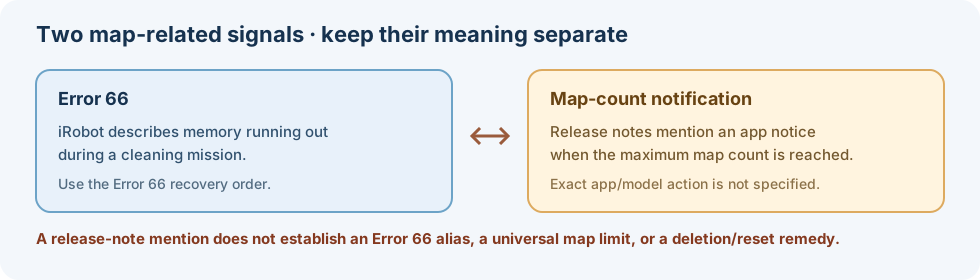
iRobot describes Error 66 as the robot running out of memory while completing a mission. The guidance covers named Roomba product groups, but it does not give an individual map limit for every SKU. Use the Roomba Home App and support instructions for the exact robot.
Separate the map-count notification from Error 66
The Roomba Home App release notes mention an in-app notification when the maximum number of maps is reached. They do not call that notice Error 66, specify a limit for every model, or provide an Error 66 remedy. If the app shows a different prompt, record its exact wording, app generation and version, and robot model before deleting maps. Use the Error 66 steps below only when the exact alert is Error 66. Read the release notes for the app context; they do not establish the alert on your device.
First checks
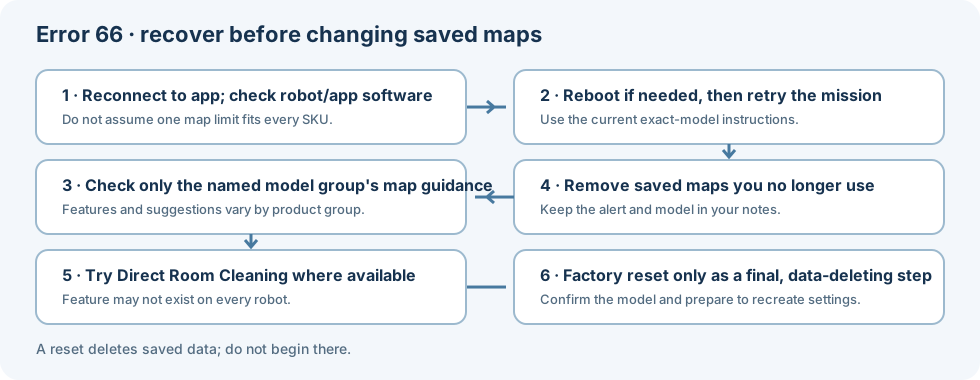
Follow iRobot’s recovery steps in order before changing saved maps:
- If the robot is not connected to the app, reconnect it. Check that both the robot and app are using the latest software.
- If the robot has not rebooted on its own—or you are unsure—reboot it using the current instructions for your exact model, then try running it again.
- If you are creating a map, compare the mapped area with the suggested maximum for the exact product group. iRobot gives different map-size suggestions for named series; do not treat one limit as universal.
- If the app has several saved maps, delete maps you no longer use and try another mission.
- If Error 66 continues in a smaller home, iRobot recommends a Direct Room Cleaning mission where available. During that mission, the robot will not look for new space.
If the robot reports Error 66 again, note the model, app, software version, number of saved maps, and mission type. These details help distinguish a map-capacity message from a navigation problem such as Error 1010.
Treat factory reset as a last step
iRobot lists a factory reset after its map-management suggestions. A factory reset deletes saved data and requires setup again, so do not use it as the first response to Error 66. Confirm the exact model’s current reset instructions and make sure you are prepared to recreate any lost maps and settings before proceeding.
The code does not identify a failed memory component, and the source does not provide a repair or part-replacement procedure. Contact iRobot support if the model-appropriate map checks do not resolve the alert.
Scope
This is iRobot’s Error 66 guidance, not a general mapping code for other brands. Error meanings, app features, and map limits vary by robot family. Start with how to identify the complete alert and model if the app message or product identity is uncertain.