Note where the robot stops: leaving the dock, at a threshold, on a rug, under furniture, in one room, or during a return-to-dock run. Record the exact model, surface, cleaning mode, app or voice alert, and whether the dock or map changed recently. A repeated stop at one physical obstacle suggests a different branch from a robot that finishes the run but skips the same mapped area.
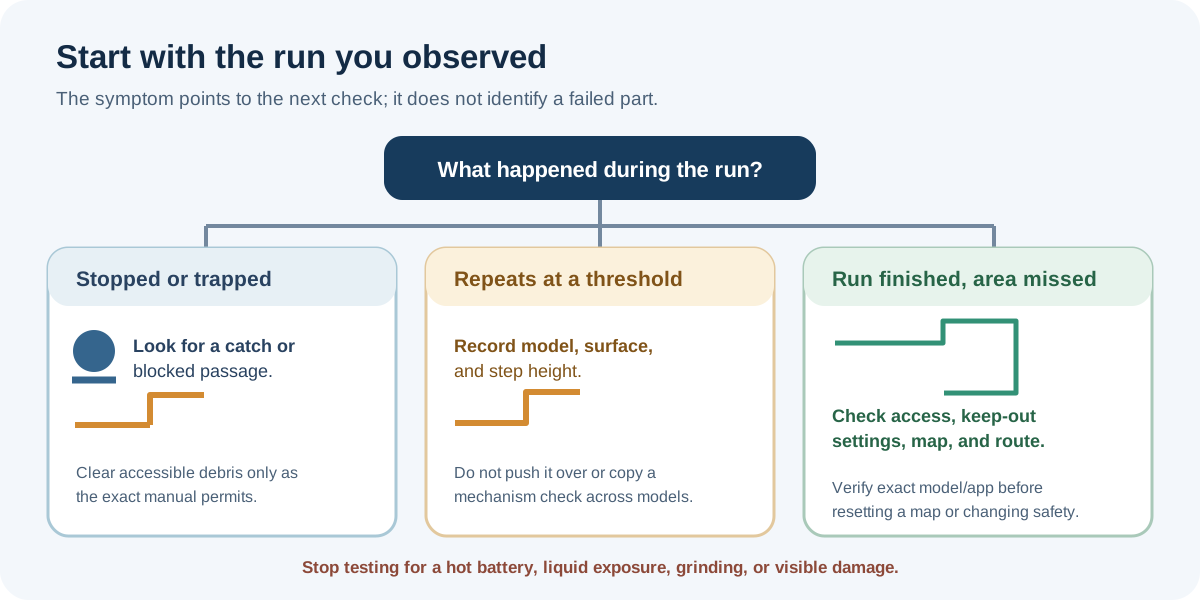
If the robot completes its route and sound is the only concern, use robot and dock noise diagnosis. If it stops, gets stuck, or misses an area, continue with the route and mobility checks here.
Check the room and route first
Remove cords, loose fabric, rug fringe, and objects that can catch a wheel or brush. Open doors the robot needs to pass through and check for low furniture, a narrow passage, a wet floor, or a threshold it cannot climb. Do not push or carry the robot over an obstacle while it is mapping unless the manufacturer says to do so; moving it can disrupt location tracking on some models.
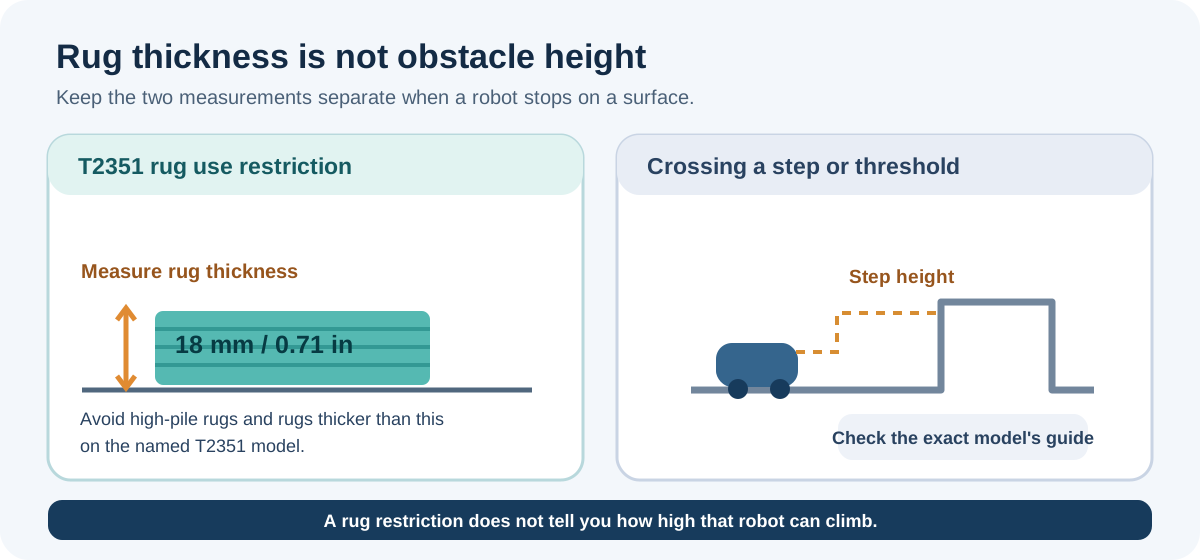
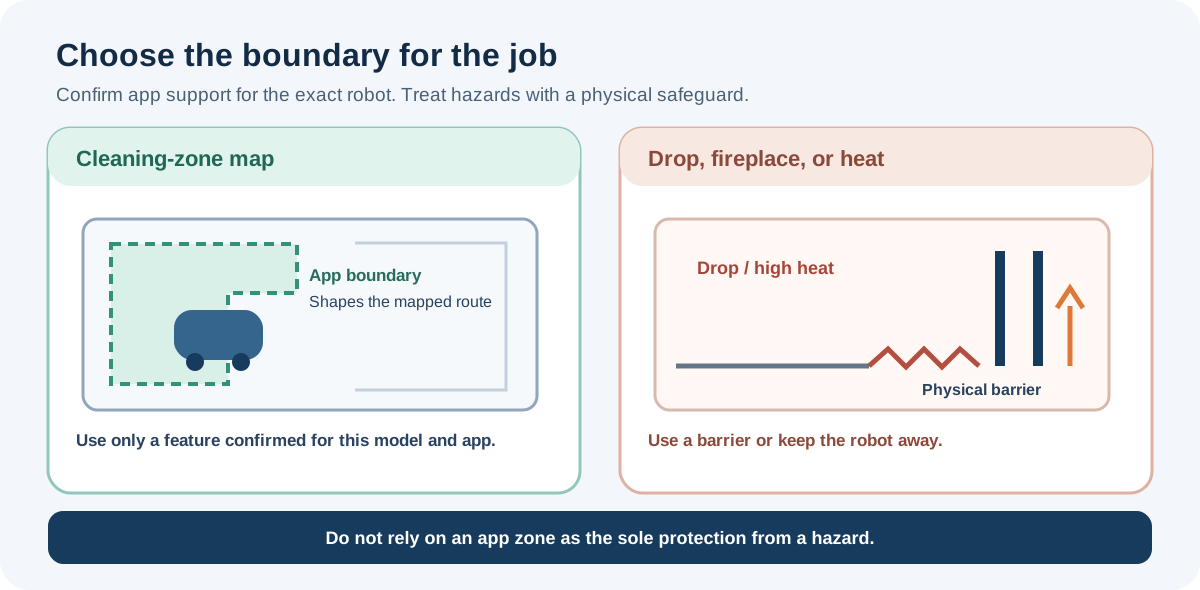
Before another rug run, compare the surface with the exact model’s pre-use restrictions. The eufy X10 Pro Omni T2351 English manual says to avoid high-pile rugs and rugs thicker than 0.71 in (18 mm), which may cause malfunction. That is a use restriction for this model, not an obstacle-climbing limit or a threshold for other robots. Do not run the X10 Pro Omni on a rug within either restricted group. Move the rug or keep it outside the cleaning area using only a boundary feature confirmed for the exact robot and app. The manual’s §2.1 suggests No-Go zones near fireplaces or vents, while §3.3 limits app zones to dividing cleaning areas and says not to use them to isolate hazards. Because that advice differs, do not rely on an app boundary as the sole protection from a drop or heat source; use a physical barrier or keep the robot away. If a confirmed cleaning boundary cannot keep the robot off a restricted rug, avoid another test there and contact eufy support.
If the problem happens on a dark rug or near a drop, do not cover or disable cliff sensors to force the robot onward. iRobot Error 6 guidance applies to the listed Roomba 500–900 and e series and includes dirty cliff sensors, an edge, an uneven floor, or a dark surface as possible conditions; that code meaning is not universal. Roborock also says a dark carpet may trigger its cliff sensors as though a drop were present and cause the robot to refuse cleaning, but its support page does not identify covered models. Treat that as one possible explanation, confirm the exact model, and keep the robot away from stairs until the cause is understood.
Check accessible moving parts and sensors
Turn the robot off before looking underneath. Clear hair or debris from user-accessible wheels, caster, brush, or bumper areas only as the manual permits. Confirm the bumper moves and returns normally if its guide describes that check. Clean sensors using the exact model’s method; a damp cloth is not right for every sensor or contact. Do not force a wheel, remove a sealed cover, or spray liquid into an opening.
If the robot spins briefly while leaving its base, check whether that is expected behavior for the model. Dreame says a robot may rotate briefly for positioning or a self-check when leaving the base or encountering many nearby obstacles. Continued spinning can have other causes, including a jammed wheel or an obstructed sensor, and needs a separate model-specific check.
For a Roomba whose movement is affected by hair or debris around the front caster, use the exact model’s caster instructions: iRobot warns that a clogged caster can impair movement and damage floors. The caster cannot be removed on Roomba Essential models, and the wheel axles stay attached to the wheels on Mini and 100/1000 models. Do not transfer removal steps from another family or force a part apart. If the caster remains stuck, the floor is being marked, or the correct access method is unclear, stop and contact iRobot support.
If the robot moves normally but misses an area
Check that the area is physically accessible and not excluded by a keep-out or virtual-wall setting. Confirm that the dock and map still match the room layout. Look at the selected route or cleaning mode before rebuilding a map: Roborock says its Fast route can skip some room boundaries and wall-adjacent spots on the named S7 Max Ultra, S8, S8+, S8 Pro Ultra, and Q Revo models. A missed strip under that setting alone does not establish a sensor failure.
Navigation features also differ by family. iRobot’s Smart Maps guide distinguishes models and notes that some camera-based models need adequate light for mapping; it also describes map recovery options that can change saved map state. Verify support for the exact robot and understand the effect before deleting or rebuilding a map. A map reset is not the first check for a robot physically trapped by a cord or furniture.
On ClearView LiDAR models listed by iRobot—the Roomba Mini, 100/1000, 200/2000, Plus 400, Plus 500, and Max 700—mirrors, windows, and shiny furniture can contribute to missing areas, false barriers, or confusing map layouts. LiDAR may also show a room visible through glass or beyond stairs even though the robot cannot physically reach it; that can be expected map behavior. For a supported model, follow iRobot’s current advice about a physical marker or a Keep Out Zone, and verify the exact model and app support before changing the map.
For a Roomba j Series that stops without a light or error message, check the HOME app, then try the robot’s resume button. If it does not resume, iRobot recommends a model-specific reboot; its reboot guidance says this preserves maps and schedules, but button sequences differ. If the battery is depleted, place the robot on its Home Base or Clean Base. Contact iRobot if the problem persists; a factory reset deletes saved information and iRobot recommends contacting support before using one.
Threshold or repeated-stop problems
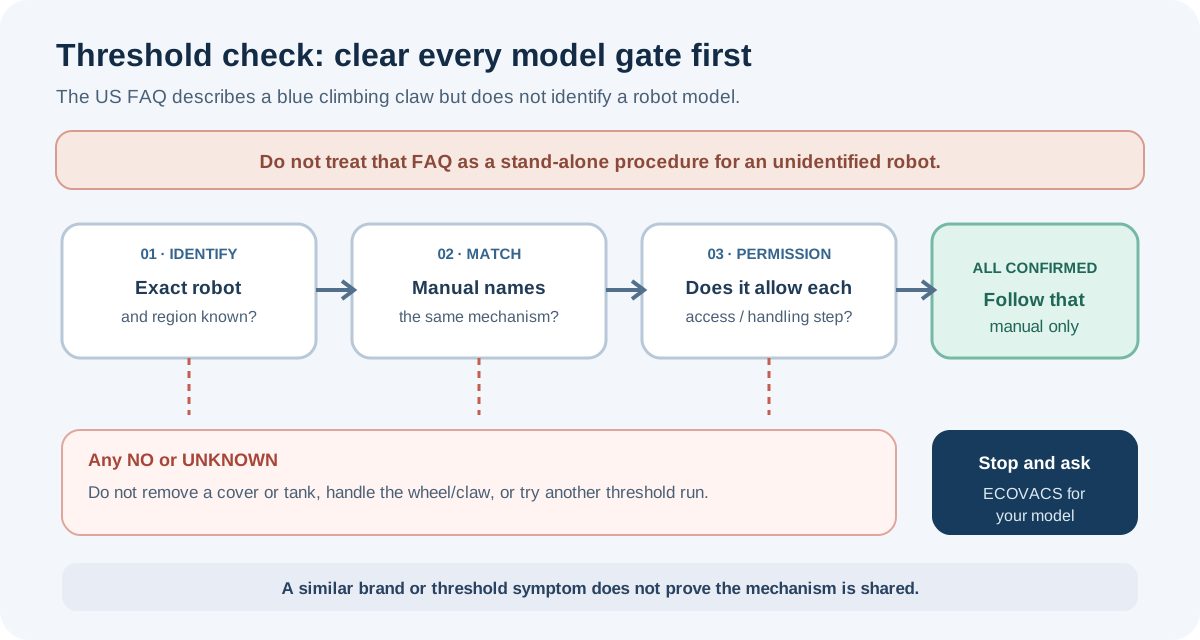
Do not force a robot over a threshold or disable a safety feature. Some models have a supported map setting or a manufacturer-defined wheel inspection. The ECOVACS US threshold FAQ describes a threshold-ramp setting and a blue climbing-claw mechanism, but does not identify the robot model. Its mechanism-specific example includes a powered-off check after removing the cover and dirty-water box. Do not use the FAQ alone as a procedure: first match the exact robot to its current manual, confirm that the feature is present, and verify that the manual permits each handling step. If model identity or permission is unclear, stop and ask ECOVACS for the procedure for that robot.
If a wheel will not move, the robot grinds, a sensor or bumper stays stuck, the battery is hot, or liquid has reached the robot, stop testing and contact the manufacturer or a qualified service provider. For a robot that also cannot return to its dock, see charging and docking diagnosis.
Sources & product documentation 14 references
- Navigating Clear Paths: Solutions for a Stuck RobotPrimary
- What to do if the robot cannot cross thresholds or steps?Primary
- Error 6. Roomba 500 - 900 and e seriesPrimary
- How to Clean or Replace your Front Caster Wheel: All Roomba ModelsPrimary
- Guide to Imprint Smart MapsPrimary
- Guide to ClearView LiDAR MapsPrimary
- j Series Roomba Stops Running with No Error IndicatorPrimary
- Rebooting Your Robot: All Roomba and Braava ModelsPrimary
- What should I do when the robot cleaner misses some areas in my home?Primary
- Is it normal that robot may miss cleaning the areas along walls when cleaning route is set to fast?Primary
- Troubleshooting: Robot spinning in place/circling in placePrimary
- Does Not Return Home, All Roomba ModelsPrimary
- Why does robot cleanner refuse to clean the dark carpet?Primary
- X10 Pro Omni T2351 English ManualPrimary